Bismillah
Have you ever wondered how programs operate within systems? Or has the following thought occurred to you: what is the difference between an ordinary user and a developer in terms of their understanding of the systems they interact with?
God willing, in this article we will clarify the executable file format in Windows and discuss some important matters regarding Windows architecture that we must not be ignorant of.
Before beginning, if you do not have sufficient knowledge of operating systems, we advise you to review the following series: 🔗 Operating Systems Series on the Shell Network
File Format (PE file format)
The PE (Portable Executable) file format is the native format for win32 files such as (dll, exe). Understanding this format is a cornerstone for analyzing Windows system files.
The PE format derives some of its specifications from Unix COFF (Common Object File Format), which is the executable file format in the Unix system that was recently replaced by ELF (Executable and Linkable Format).
What does Portable Executable mean? It means that the format is comprehensive and widespread across the win32 platform such that the PE Loader recognizes it on any platform running win32 regardless of the processor type.
What is the Structure of this Format?
This format is fundamentally identified by the PE Header: it is the core component that defines PE files intrinsically. It consists of several successive layers that perform specific functions to ensure the file is loaded and executed correctly in the Windows environment.
The PE Header consists of several parts that define its identity and behavior:
1. DOS Header
It is the first 64 bytes of the file and contains the information necessary to recognize that this file is in PE format:
- e_magic: the magic number that indicates the two characters MZ or
4d 5ain hex, named after the engineer “Mark Zbikowski”, and these are what determine that the file is in PE format.
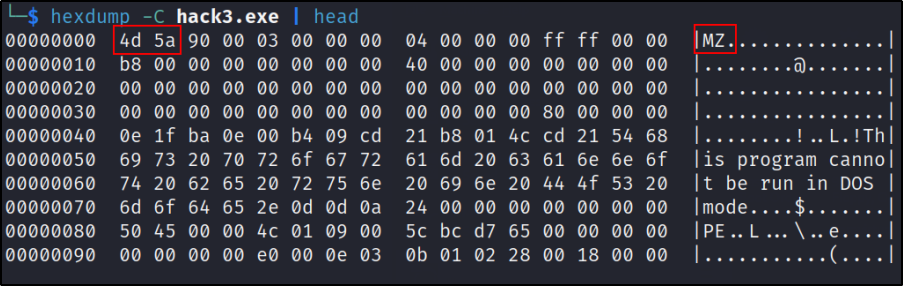 Figure (1): The magic number.
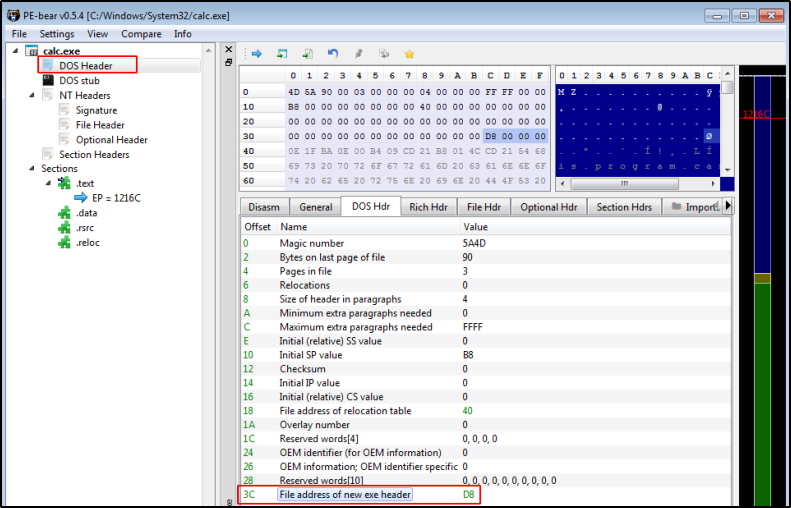
- e_lfanew: located at offset
0x3cwithin the DOS Header, it is an address that points to the location where the PE Header (the new NT Header) begins.
2. DOS Stub
It is a remnant of the DOS Header that comes after the first 64 bytes of the DOS Header; it is a memory region that is usually filled with zeros or contains a simple error message indicating that this program cannot run in DOS mode (which had a 16-bit architecture in MS-DOS).
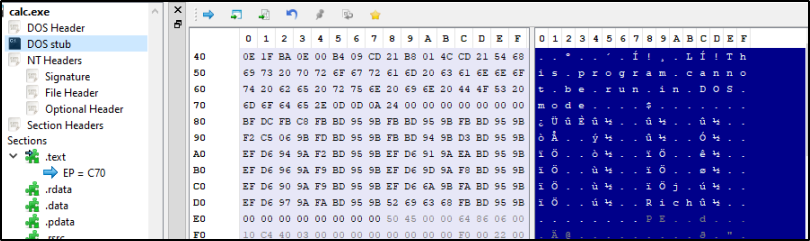 Figure (2): An image illustrating the DOS Stub.
3. NT Header / PE Header
It is defined programmatically as the IMAGE_NT_HEADER structure.
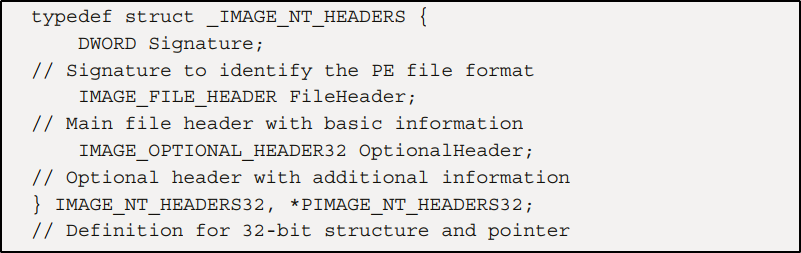 Figure (3): An image illustrating the structure definition.
It consists of three parts:
- Signature: consists of the magic bytes
PE\0\0or in hex50 45 00 00to identify the file format.
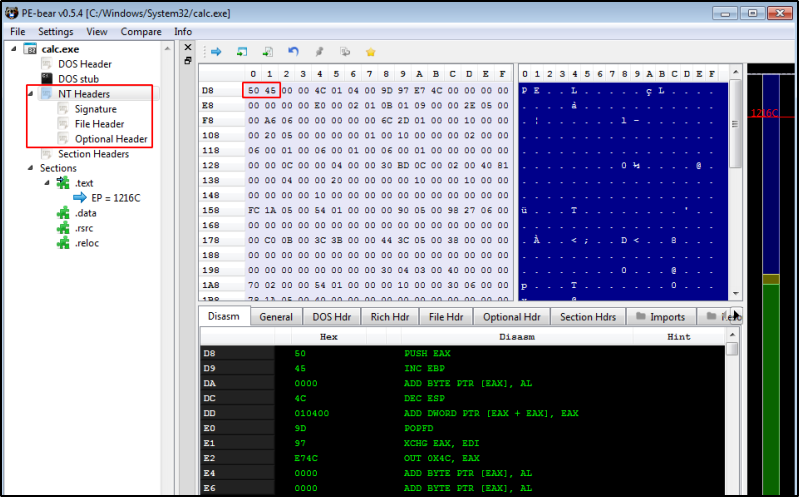 Figure (4): An image illustrating the signature.
- File Header (or COFF Header): describes the basic properties of the file such as:
- Machine: the processor type.
- NumberOfSections: the number of sections present in the file.
- Characteristics: the file attributes (such as whether it is an Exe or a DLL).
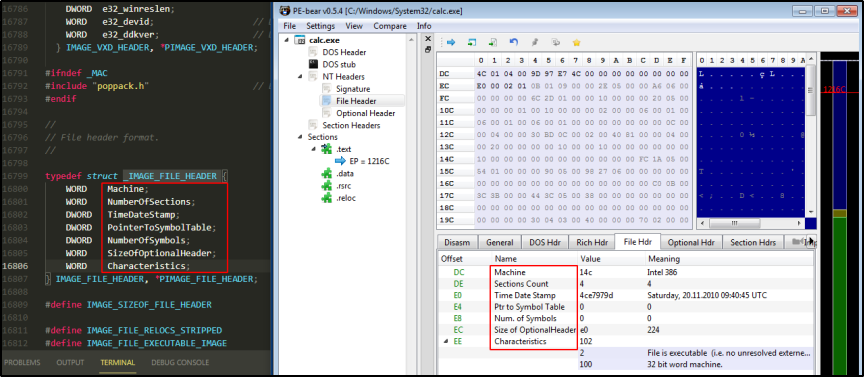 Figure (5): An image illustrating the file header.
- Optional Header: despite its name, it is mandatory for PE files and contains critically important variables:
- AddressOfEntryPoint: the program’s entry point.
- ImageBase: the preferred address for loading the file into memory.
- DataDirectory: a list of 16 elements pointing to important tables such as the export table and the import table.
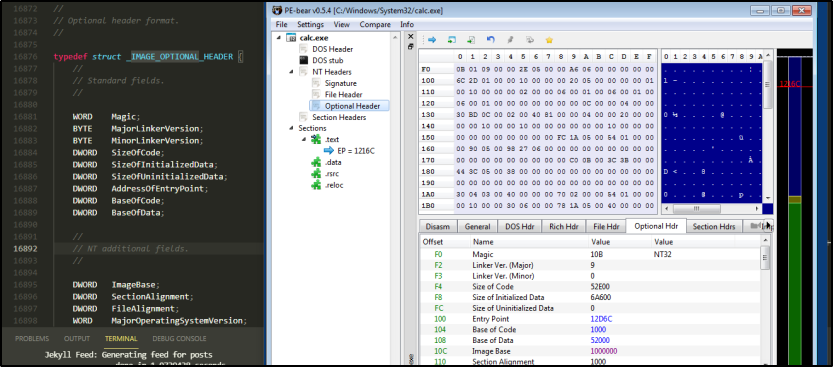 Figure (6): An image illustrating the optional header.
4. Section Table / Headers
Like a map that illustrates how data is divided and distributed in memory, this table comes immediately after the Headers and before the actual section data.
The section table consists of an array called IMAGE_SECTION_HEADER, where each element in this array describes a specific section in the file. The size of each element in this table is 0x28 bytes.
Each entry in the table contains important details:
- Name: the name of the section (such as
.textor.data). - VirtualSize: the actual size of the section when loaded into memory.
- VirtualAddress: the address at which the section will be placed in virtual memory.
- SizeOfRawData: the size on disk (hard disk).
- Characteristics: the section attributes (such as readable, writable, or executable).
5. Sections
They come after the section table. What are these sections?
- .text: contains the program’s executable code.
- .rdata: contains read-only data (such as Strings and Constants).
Sometimes the rdata is split into two sections, and we most often see this in DLL files:
- .idata: for the imports directory.
- .edata: for the exports directory, and this is an important section in dll files for linking exported Functions to names or identifying numbers.
- .data: contains the data and variables that have been initialized.
- .rsrc: contains resources such as the program’s images and icons.
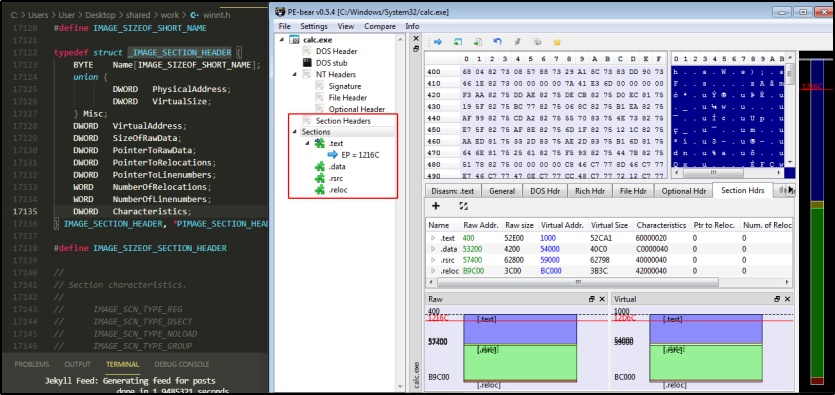 Figure (7): An image illustrating the sections.
What is the Difference Between Exe vs DLL Files?
- Exe files: require the existence of a function called
Mainthat the OS Loader calls when the new process is ready. These files run independently; the system creates a new process and a dedicated virtual space for it. - DLL files: require a function called
DllMain; the code is executed directly as soon as the appropriate dll library is loaded into memory. They cannot run independently but must be loaded inside a pre-existing virtual address space. Why? Because the process may require functions provided by this library.
In short: while the exe file represents the program that starts the process, the dll file represents the library that supplies that process with functions.
Windows Architecture (Windows Internals)
We return to ask what distinguishes the developer in systems from the user? Simply, it is knowledge of the system’s internal matters that do not concern the ordinary user, known as Windows Internals.
Windows internals are the concepts that you must know how to work with in the Windows system. Anyone who will learn low-level topics or program something low-level must have experience with these points:
1. Processes
It means any program that is under execution. Processes have a structure in the kernel called the Process Control Block = PCB, also called KProcess, which the kernel uses to control the operations of that process.
In memory the situation differs; there is something called the EProcess structure, which is distinct from the KProcess; the EProcess contains a great deal of information, the most important of which are:
- Process id: the process number.
- exe name: the name of the executable file associated with that process.
- dll files: the dll files associated with that process.
- PCB: the kernel structure associated with that process.
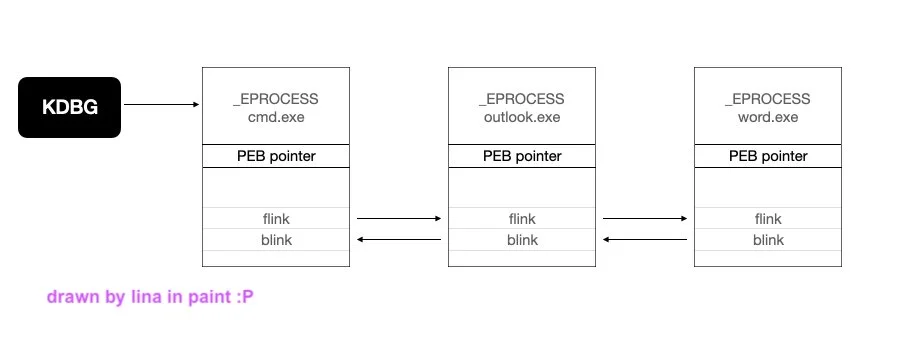 Figure (8): An image illustrating the interrelationship of processes.
These EProcesses exist in kernel memory as a double-linked list, meaning each process has a forward link and a back link. Of course, many programs can reach this EProcess, such as Process Explorer.
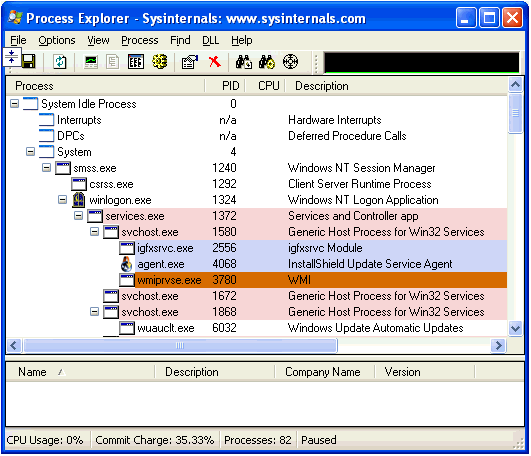 Figure (9): An image illustrating a view from within the program.
2. Threads
In short, it is what Windows executes. As for the Process: it contains threads within it. The process itself is not what runs the code; rather, it must contain at least one thread to run the code on the processor, but it does not follow that a thread can run by itself if it is not inside a process.
A thread has 3 possible states:
- Running: meaning it is active or under execution.
- Ready: ready and waiting for the processor to run it.
- Blocked/Suspended: stopped or blocked, let us say as a result of an interrupt.
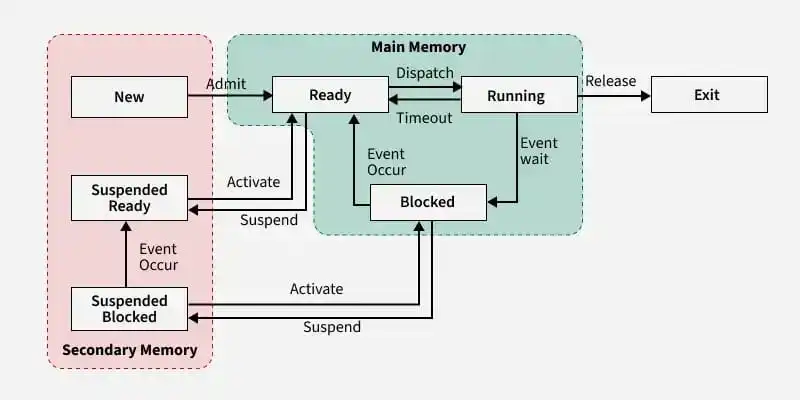 Figure (10): An image illustrating thread states.
Since a process may contain more than one thread. Are they isolated from one another?
No, they share memory, meaning the threads share the resources and the address spaces (such as the .data section and the .code section). But each thread still has its own stack and registers.
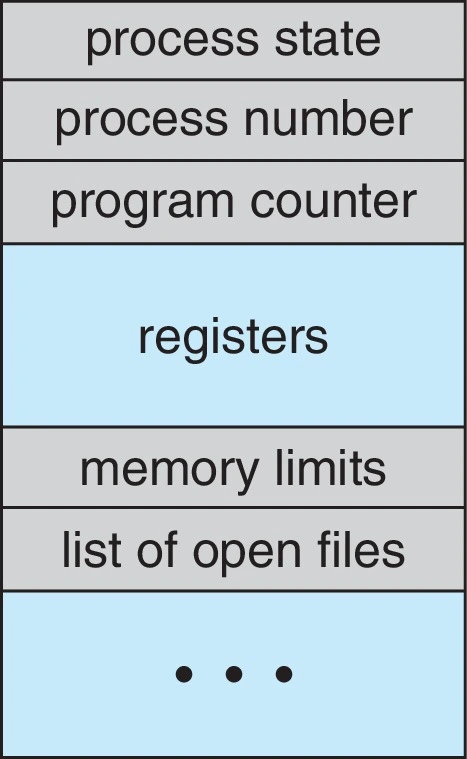 Figure (11): An image illustrating memory sharing between threads.
3. Virtual Memory / Virtual Address Space
Any exe.file that we run will have a process, and that process has its own address space.
The address space takes a range from 00000000 to ffffffff and this range is divided into two parts, each 2Gb: a part for user mode and a part for kernel mode.
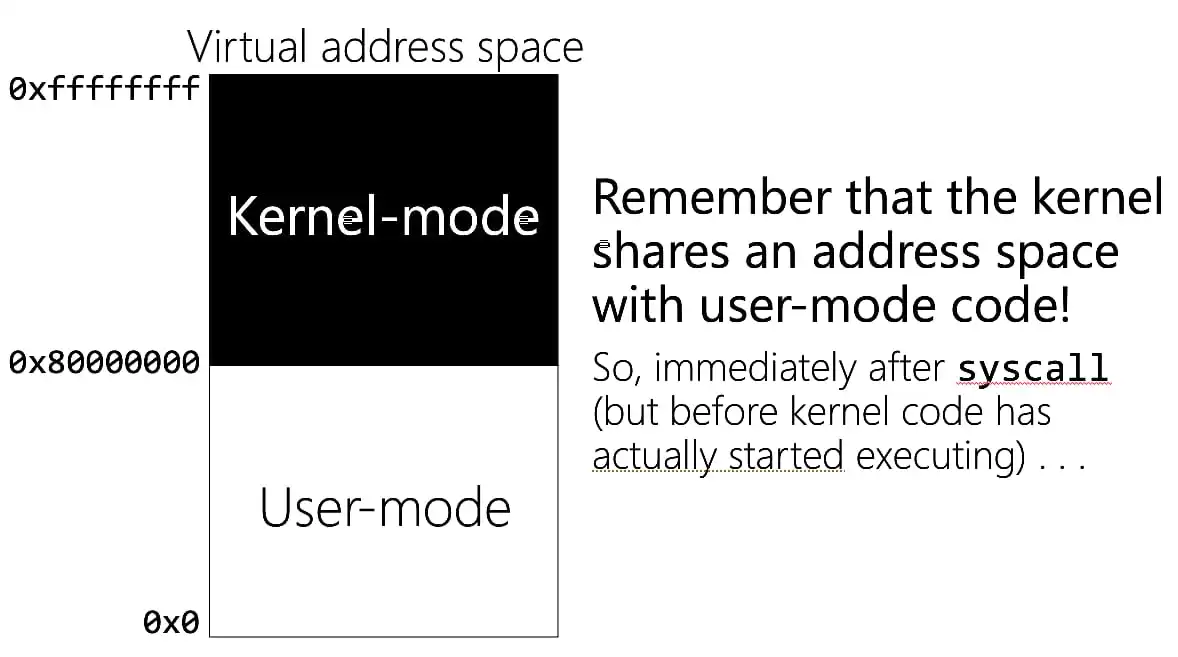 Figure (12): An image illustrating the comparison between the physical and virtual portions of memory.
- The user mode range: from
00000000to7fffffff - And kernel mode: from
80000000toffffffff(Noting that this applies to the 32-bit system.)
4. Virtual Address VS Physical Address
Every program has a process, and every process has virtual memory. And as we know, every exe file has a section in memory.
So if we have two applications that placed .text and .data at random addresses, and fate willed that the .data addresses are identical, does that mean the .data section is shared?
No, because the base addresses of programs exist in RAM, which is the physical memory, and the addresses we are currently dealing with are virtual. So when the process begins to read data, something called virtual-to-physical occurs; the operating system handles the matter and connects each section to a specific address in RAM.
We must know: The virtual address does not represent an actual location in RAM; instead, the system maintains pages for each process (in order to translate virtual addresses into physical addresses). At the same time, this applies to threads, and this process is called virtual-to-physical translation.
In Windows, they made a move so that not every process loads its own segments from RAM. They created files with dll extensions; thus any process must load ntdll.dll and kernel32.dll, and these are libraries, or more precisely (dynamic link libraries), meaning linking libraries in which multiple processes are linked to the same address. The first process performs the mapping or division of this dll at shared addresses between all the processes.
5. Synchronization
In short, it prevents simultaneous access (meaning several programs or threads using the same file or the same memory at the same time). They created something called a mutex, also referred to as a lock: it is an object used generally in programming that prevents simultaneous access from occurring.
An example to clarify matters somewhat: If we have two different processes and they both want to write to memory at the same time, what happens? Imagine the memory is overseen by a police officer; this officer does not allow anyone to enter and write unless they hold the mutex. So a process comes with the mutex object, writes to memory, and releases the mutex; then the second process comes, takes this mutex, and writes to memory.
6. Services
Services allow us to run long-running executable apps.
They will continue running in the background, operating in a special Windows session called svchost.exe (which is a host for the services; the services are scheduled and run by the Windows Service Manager without user intervention).
7. Registry
It is a database in which the settings of the Windows system and the programs present on it are stored. The registry contains two basic elements:
- Keys: these are the folders.
- Values: these are the files.
In the registry there is something called root keys or HKEYs, and these are the most important paths we interact with:
- HKEY_CURRENT_USER
- HKEY_LOCAL_MACHINE
- HKEY_USERS
- HKEY_CLASSES_ROOT
So what are the important things present in the registry?
- The list of programs and services installed on the system.
- The settings of the programs and services.
- The programs that auto run after boot.
- The file associations (meaning if the user wants to open an
.htmlpage, they open it in chrome or firefox, for example). - We see the history of usb devices and the network adapter settings.
The file containing the registry functions is called
advapi32.dll, and all functions related to the registry begin withReg.
8. Windows Coding Conventions
Some constants in the Windows API; these constants make it easier for you to read Microsoft’s docs or to predict, for example, what some function does from its name. Windows data types:
- Byte -> 1Byte
- Word -> 2Bytes
- DWord -> 4Bytes
- QWord -> 8Bytes
Microsoft relies on prefix naming in naming (prefix meaning the forepart) to let us know, for example, what the data type of a variable or a certain structure is. And we can query every function via MSDN - MicroSoft Developer Network, and at the end of every function we find the dll file in which that function resides.
9. Handles
The handle is almost like the pointer… The difference is that we can perform arithmetic operations on a pointer, but we cannot on a handle (meaning we simply take this handle, store it, and use it as-is at a later time).
For example:
We want to make a call to a function named CreateWindowEx; this function, once called, creates a window and returns a handle to that window. And if I want to perform any operation on that window, such as adding or controlling a button or anything else, I must reference that window through the handle.
10. Network Functions in the API
Microsoft provides 2 APIs for Networking:
- low-level API: It deals with sockets and is called winsock. The socket is a handle at the endpoint for network communications. Example: in the cups game where they communicate with each other:
 Figure (13): An image illustrating the sender and receiver principle.
Each cup is a socket; a cup for listening and a cup for speaking. So we treat the socket as a file: we can write or read to it.
- high-level API:
It is called wininet and allows programmers to use high-level protocols such as http, ftp.
Of course, this library keeps pace with the standards specific to the protocols, such as http, and there are many dll files specific to the high-level such as:
winhttp.dll,dnsapi.dll,urlmon.dll.
11. The Native API
When we make a Call to a function from the win32api, that function does not directly perform what we requested. Rather, it needs to communicate with the kernel in order to reach the hardware.
So the userapps use win32api from files such as kernel32.dll, and these files make a Call to a file named ntdll.dll: it is responsible for the interactions between user mode and kernel mode.
The native api allows the apps to communicate directly with ntdll.dll.
References
- Practical Malware Analysis
- Windows Internals
- Malware Development for Ethical Hackers